Be yourself; Everyone else is already taken.
— Oscar Wilde.
This is the first post on my new blog. I’m just getting this new blog going, so stay tuned for more. Subscribe below to get notified when I post new updates.
Be yourself; Everyone else is already taken.
— Oscar Wilde.
This is the first post on my new blog. I’m just getting this new blog going, so stay tuned for more. Subscribe below to get notified when I post new updates.
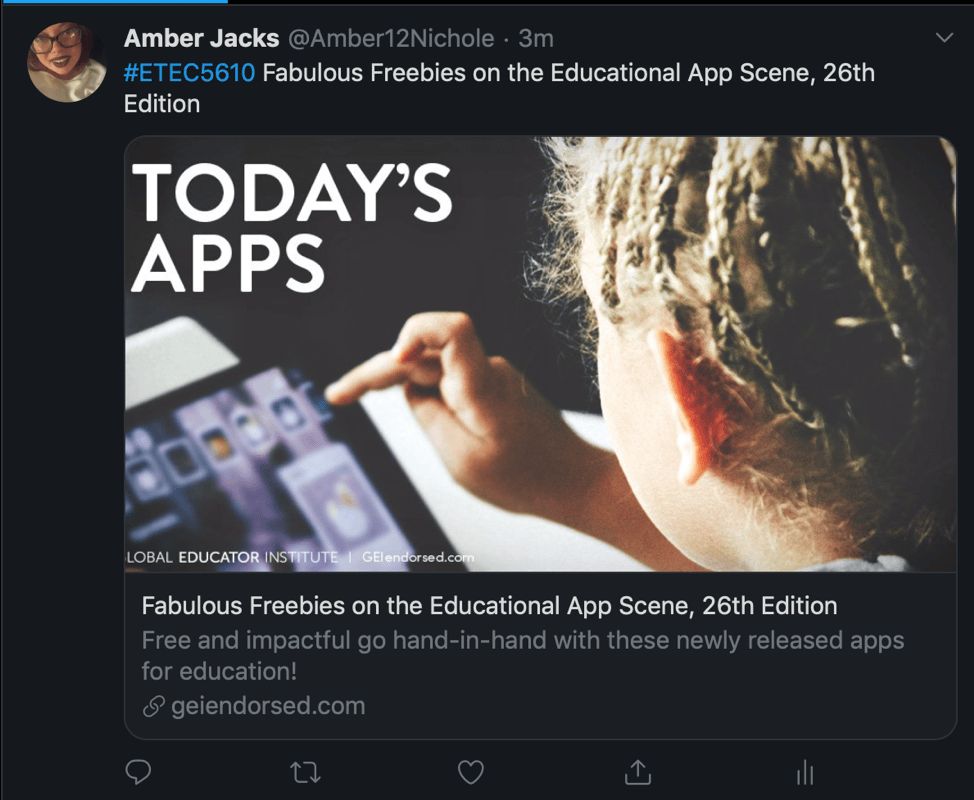
This article gives you a heads up on what the newest free apps are. It has links to all of their pages and a short description about what each app does. Snow Day Forecaster it is an app that is like the weather app, but the students can use it to predict the weather. Wonderscope allows users to bring a story to life wherever they may be. Students must read the words on the screen to make the next story event occur. Advanced American Dictionary because who doesn’t need a dictionary for free. AR Makr allows students to create AR. Users can use this creative toolbox to transfer their imaginations to the world around them. Freedom- Block Distractions–allows users to focus and be more productive by temporarily blocking distracting websites. Learn to Sing by Perfect Pitch–Students can listen to any pitch and practice as the app displays their accuracy in real time.
Pearltrees is a place to organize everything. This free service lets you organize, explore and share everything you’re interested in. Save web pages, files, photos or notes and organize them. Explore amazing collections that relate to your interests and subscribe to their updates. Access your account anytime and share anything from your computer, mobile and tablet. I have the students use this when they are trying to organize for a project. The only challenge I can see happening with the implantation of this device would be getting the students to remember to save everything to this service.
Applying Maslow’s Hierarchy of Needs to the Use of Educational Technology
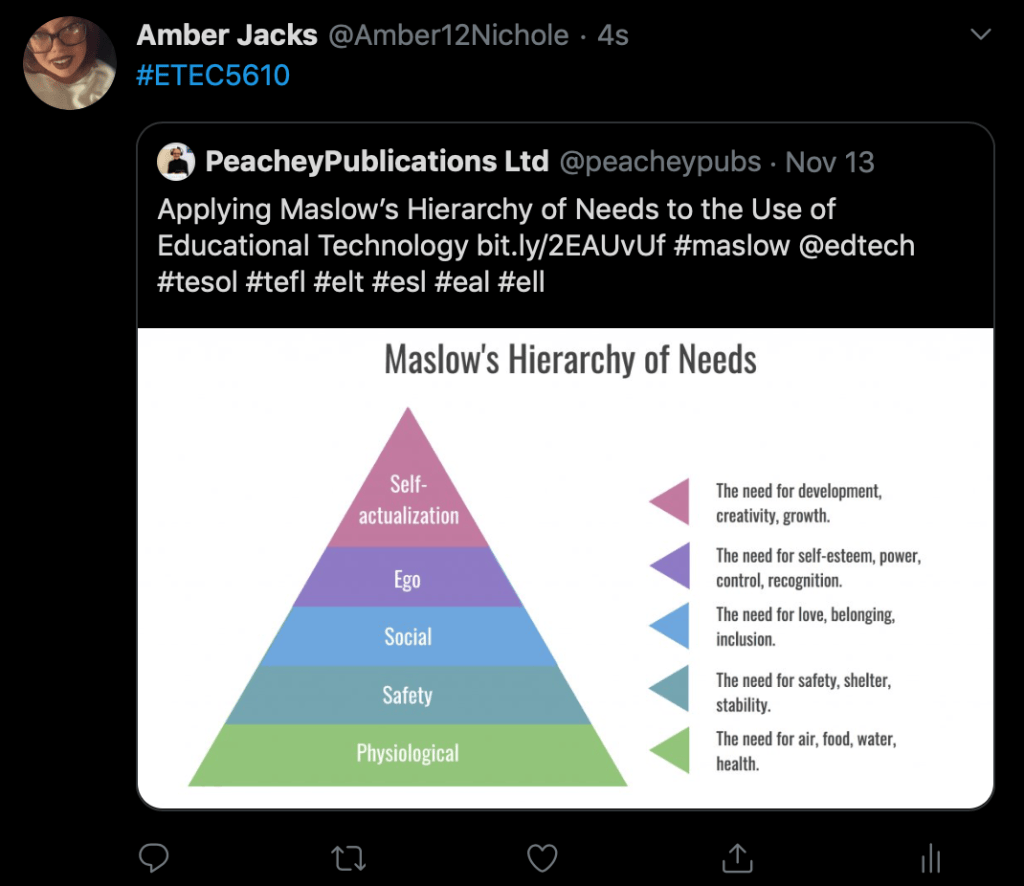
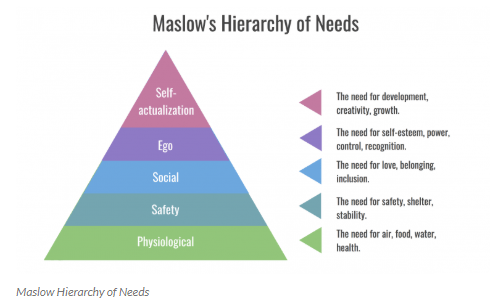
The article states, “The relevance to educational technology is that it can help us decide which tools we choose to use with our students and how we enable our students to use these tools.” That is one line that I can relate with. Education is based on Bloom’s Taxonomy, but Maslow needs to come before Bloom. Students need to have that sense of need before they can Bloom can be applied. This article shows how Maslows’ Hierarchy of Needs can be fulfilled by the use of educational technology. The picture below states that fact. Another line that stuck with me was, “Putting the technology into the hands of students and helping them to understand how to use it in a way that leads to their own self-actualization can also be a perfectly legitimate goal in itself.”
Remind
Remind is a classroom messaging app that helps teachers, students, and parents communicate quickly. Remind takes away that unknowing or forgetting about what message came from what person or if you have even messaged them back. It is a way for contacts to schedule reminders and include attachments. I can use this app throughout the year with the parents to keep them updated with what is happening in the classroom. I know a teacher who actually uses this as a weekly newsletter for the parents as well as her sending a hard copy home with the students. The only challenge I see when using this tool is getting the parents to sign up for the app. I will probably have some parents who are all for it and other parents who think that it is stupid.
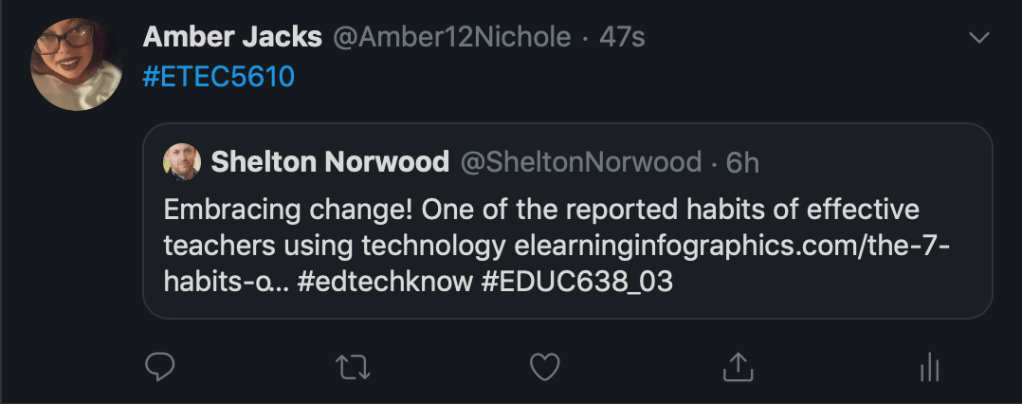
This article states habits that highly effective teachers who use technology have. The first habit is that the teacher always starts with the why. It means they have a reason for using the new technology. The second habit is they are malleable and can easily adapt. That means as the technology changes and is updated then the teacher is able to easily transition. The third habit is they embrace change. They understand that change is the key to progress. The forth habit was sharing. Everyone has heard the age old line, Sharing is Caring. For effective teachers it is very true, they share all the best practices and free applications. The fifth habit is win-win-win-win which means everyone needs to embrace the technology: administers, parents, teachers, and the students. The sixth habit is planning and thinking through. When presenting the new technology to the administration, the teacher needs to plan the presentation with examples and different scenarios. The seventh habit is actually caring. That means the teacher is excited because they are using technology not to make their job easier, but to make a greater impact.
Kahoot!
Kahoot! is a game-based learning platform. It was launched in 2013 and allows the teacher to quickly create fun learning games. After creating the games, the students can use any device to sign-in and play. They will need a unique code to access the program. They can complete the lessons set by the teacher as well as compete with their classmates. The students can create their own games. One way I could implement this tool into my classroom is during class review. If there is a unit test coming up this would be a great way to get the class excited for the test as well as review for the test. One challenge I can see when implementing this tool would be when I first start using the tool. The students might get a little out of hand when realizing it is a game-based tool.
This article has 10 useful tools that every writer should have. They reviewed Bubbl.us. This is a web-based software that basically helps people or groups have an organized visualization of ideas during brainstorming. This software allows you to graphically present your thoughts out and outline your book or article. It is all saved in a cloud storage and shared with collaborators. This allows everyone to contribute to the brainstorming process. It also helps control the chaos of having multiple people brainstorm on one idea. I personally think this is a great way to gather thoughts on a certain topic.
Scratch
This specific tool can be used for creative writing. This tool allows the students to create their own stories, animations, and games. They can change the size, shape, and colors on everything. It will allow the students to grow in their creative mind because not only do they have to create a story or game they are also getting to play with the tool while doing it. The only challenge that I could see with implementing this tool is the amount of technology that each student has access to. In the school that I have observed there are 2 main computers and 4 iPads for a total of 16 students. Other than that I feel like this tool is great!
VoiceThread
This article was targeted on how the online nursing classes used this tool. One thing that stuck out to me was that the tool is compatible with most online learning platforms. The only thing that turns me off is that it is can be purchased by a single instructor or an entire school. The students do not purchase their own individual accounts. This tool allows students to learn in a social environment. The article then goes into detail on how the instructor used the tool. It gives you a run-down on how the article fits in, in a school setting. Most of the students after using VoiceThread really loved how the information was presented to them. I really like the statement, “really does provide a comprehensive study guide for the students made by the students.” The shows that the students do enjoy the VoiceThread.
Thinglink
Thinglink allows educators to create interactive images with music, sounds, texts, and photographs. These can be shared on other websites or on social networks, such as Twitter and Facebook. Thinglink offers the possibility for teachers to create learning methodologies that awaken the curiosity of students through interactive content that can expand their knowledge. There are different levels of Thinglink. There is the free version with just Interactive image editing and Virtual tour creation. There are two levels that you can purchase, one for $35/per year and the other for $1000/per year. Each level of course comes with more and more features. It is available as a Chrome app, on the Web, and on iOS and Android. It is super easy to find information about how to work the website. Links can lead users to informational Web pages, audio recordings, and videos. Prompts guide users most of the way, and a Search Content option helps support the embedding process with links to commonly used Web resources.
Personally, I think that ThingLink would be a great way to get students engaged in any information that seems boring. I could use it in ELA to help connect students to the stories. Also, I can use it in Social Studies when the information just seems like it is overloaded with facts.
The only thing that I can see being a challenge would be having students get off task when creating the ThingLink. Also, the time to create and actually use the tool to its full potential.
https://www.edsurge.com/product-reviews/newsela
The above article gives an overview of what NewELA is about and how to use it. Also, on this article it has reviews about the site from teacher and students. Newela is a tool that has articles that the students actually like while also applying to the core curriculum. The site is designed to target 5 different reading levels, normally grades 2-6. There are articles available in Spanish for bilingual students. The reviews give feedback that seems very honest. I have never used this site, but it seems like something that would help engage the students on the latest articles.
The tool Socrative allows teachers to create games or exercises that the students can solve on their provided technology. After the students are done with their exercises and games the teacher can view the lesson to see what needs to be changed or explained more. The teachers can also personalize the games or exercises depending on the student.
There are four key features to Socrative:
1. Quiz – this allows teachers to create multiple-choice, true/false or short-answer question quizzes that they can save and use again. In class, the teacher launches the quiz and students complete it in real time on their devices.
2. Space Race – students complete a quiz, but this time they compete against each other to get a spaceship from one side of the screen to the other.
3. Quick Question – the teacher asks a multiple-choice, true/false or short-answer question orally or writes it on the board. Students use Socrative to choose the correct answer.
4. Exit Ticket – students reflect at the end of a lesson. There are two inbuilt questions (How well did you understand today’s material? and What did you learn in today’s class?). The teacher sets the third question orally or on the board, which could be a question such as What three new words have you learned today? or What did you find difficult about today’s lesson?

Storybird is a tool that the teachers use to create interactive book online that can be sent through the email or in blogs and more. The purpose of this tool is to promote writing and reading skills. The teacher can create projects and give constant feedback on grades and classes. The article is just a list of 10 top educational tools that the teachers can implement in their lessons. This article ranks this tool at #7 out of numerous tools. This article also covers Khan Academy, Time4Learning, Reading Eggs, TED-Ed, and cK-12. Those are the top 5 educational tools.
Coolmath.com is a really cool website that makes math fun for people who thought it could never be. The whole company has three different websites depending on what age the users are. Coolmath.com is for users 13-100. Coolmath4Kids targets 12 and under. CoolmathGames is a website that is for brain-training for everyone. All the sites cover any type of math from simple textbook math all the way up to pre-calculus. Personally, I have heard people that have used it and benefited from the site. I wonder what youngest user can be. It states 12 and under but no minimum. I can see my class using the CoolmathGames for sure. It could really help make the connection to the lesson with games. The only challenge I could see if finding the correct game for primary grades.
It’s NOT About Google, It’s About the Learning!— Part 2: Digital Citizenship
8 Ways to Support Digital Citizenship Skills with Google
This article was really interesting and useful to read. It talks about how Good can help support Digital Citizenship. It has 8 ways for Google to help out. The first way is a program that has an interactive game for the students. It is designed towards grades 3-5 but can be adjusted for younger and older students. The second way is that Google has a self-paced training, Digital Citizenship training. It is a course with 6 units that teachers can learn how to stay safe and how to advise students to stay safe. The third way is a feature that Google Docs offers. That citations are built-in to the Google Docs. The fourth way is searching for images. You can now search for images without leaving Google Docs, Sheets, Slides, Forms, and Drawings. Also, when you run the search the results are filtered so that you have permission to use the images. The fifth way is that you can Google yourself to see where your digital footprint is. The sixth way is Google a Day challenges. The seventh way is Google has designed a series of lessons to help with guiding the students to search meaningfully in their schoolwork. The last way is Google Alerts it allows you to be alerted when new information on topic that interest you come available. I haven’t heard of most of these ways. I am really excited about the ways Google is supporting Digital Citizenship.
Free Natural Reader is one educational technology tool that I could really see myself using. The tool allows you to convert any written text, Microsoft Word, webpages, PDF files, and E-mails into spoken words. If a student is in need of the text-to-speech website, you just upload your files into the website, and it will convert it to a mp3 file that you can listen to whenever you would like. One problem I can see from the tool is when the student is listening to the text, they will not get any of the elaborations that I would say. I will have to plan around the text and think of spots where the student who is listening to the text can take the headphones off and listen to me. Other than the flow and planning of when the student can use them, I really like the idea of having a reliable text-to-talk application.
The YouTube video attached shows how technology can improve the understanding of patterns. Using the computer, the interactive games help associate the arithmetic progression. It does go into larger and more complicated equations, but the bases of the principle is there. It shows how the interactive programs establish that concert floor of arithmetic progression. That way later on in a higher grade the foundation is extremely strong. Noticing pattern progression is not just a math skill, you can see that in all aspects of life.
TED-Ed is one tool that I was the most interested in. It is a platform that allows creating educational lessons with collaboration of many parties. To implement this tool in my classroom it would be very difficult. Making the TED-Ed would not be easy for my classroom, but watching them would be. It would allow me to expand on the topic that we are already covering. Having the students watch the video and give feedback on what they did and did not like would be the easiest route.
Hi! My name is Amber! I am currently not teaching, but hope to be in the next few months. I currently work full time for an insurance company, handling all their contracts and screening all potential agents. I have subsituted for a year before my current job. I recently stepped down from my part-time job because I wanted to focus more on school. My interests (that I finally have time for) are reading and my animals. I have one dog, a poodle named Red, and two cats, Emblie and Jinx. I pretty much read anything I can get my hands on. The staff at the public library know me by name. Yes, I still check out books from the library….I enjoy the atmosphere. I am in my 3rd semester of the MAT program. I am getting my certification in Elementary Education grades 1-5. I hope to teach at the same school I attended. It was a small school with Pre-K-12th grade on one campus. It is a very tight knit community. I really enjoy watching the interactions between the different grades and the student teacher relationships. With me taking this course, I hope to gain more knowledge on teaching strategies and how to become more confident in what I will teach. I am hoping that I will build on and elaborate some of the information that I have learned in the past semesters. I have NO idea on how to blog, so we will see how this goes! I hope everyone’s semester is GREAT!
Have a WordPress.com account? Log in now.

